Introduction
The Hot Water Widget in the Wondrwall app allows you to quickly control your home’s hot water efficiently. You can adjust settings or create schedules so water is only heated when needed, and only as much as you need. Due to Wondrwall’s intelligent hot water tank, it only heats the water you need, rather than a full tank every time, making your home more energy efficient, lowering your bills.
Accessing your Hot Water Widget 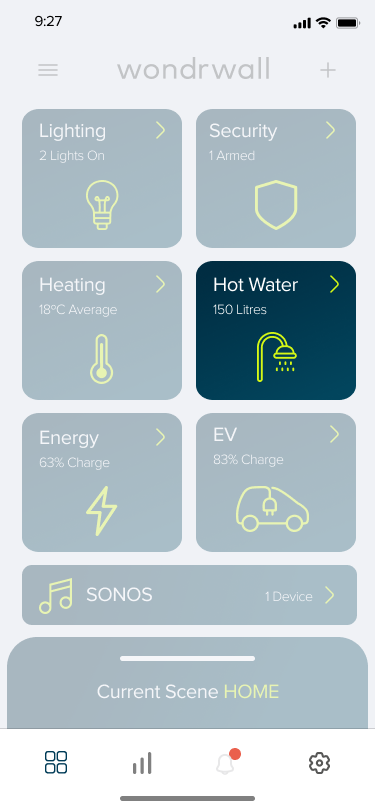
Here is an image of the Wondrwall app’s home screen once you are logged into your home. The highlighted box shows your Hot Water Widget, which displays how much water is currently heated (in litres). From here, you can tap to open the Hot Water Overview Screen. The steps below explain how to access it.
Steps:
- Open the Wondrwall app. If you are logged into your home system, then you will be auto-directed to the home screen. Here you will see a grid of different widgets, each controlling a different part of your Wondrwall system
- Tap the Hot water Widget on the Wondrwall app homepage
- You will now see your Hot Water Overview Screen
Note: Some of the widgets on the Wondrwall home screen may be greyed out. This means you do not currently have any of the associated Wondrwall devices paired.
The Hot Water Overview Screen
The Overview Screen displays the current status of your hot water system and gives you control over scheduling and temperature settings.
Top Bar
-
Status: Shows whether the hot water system is Online (navy) or Offline (grey). If offline, intelligent functions cannot be used.
-
Current Temperature: Displays the current water temperature (°C).
-
Tank Capacity: Shows the total size of your hot water tank (litres).
Temperature Circle
The colour of the temperature circle shows the current heating state:
-
Orange: Water is heating to reach the Target Temperature.
-
White: Water is cooling down towards the Saving Temperature.
-
Lime Green: Water has reached the Target Temperature.
The Scheduling Button:
- This button gives you access to the scheduling of your hot water, allowing you to have hot water when you need it, and lower the temperature of your water to save energy when you do not require it.
The Schedule Overview Screen
The Schedule Overview Screen shows the weekly schedule of your hot water, containing several icons and options. Below is a deep dive into each icon and their function.
Schedule Timeline

- Within the Schedule Overview Screen, you will see 7 daily Schedule Timelines, one for each day of the week
- Orange shows when the hot water is scheduled to come on and will reach your set Comfort Temperature
- Grey shows when the water temperature will be set to your Saving Temperature
Changing your Hot Water Schedule
To change the schedule of your hot water tank, follow the steps below.
Steps:
- From the Hot Water Overview Screen, tap the scheduling icon at the bottom of the screen. You will then see the Schedule Overview Screen
- Tap a day you wish to change
- You will then see a vertical timeline of white and orange boxes showing when your hot water is scheduled to switch on and reach your selected Comfort Temperature
- Select which days you are
 Changing the schedule by selecting them at the top of the screen. They will turn dark blue when they have been selected
- Tap the orange heating interval that you wish to change.
- You can then change the timings using the dropdown time selectors (for instance, from 07:30 to 09:30)
- You can also add another heating interval by tapping “Add Heating Interval” on the day’s Schedule Page and following the same procedure
- Press Confirm when you are happy with the timings.
 Changing the schedule by selecting them at the top of the screen. They will turn dark blue when they have been selected
 You can also add another heating interval by tapping “Add Heating Interval” on the day’s Schedule Page and following the same procedure
 Press Confirm when you are happy with the timings.
Understanding Comfort and Saving Temperature
Comfort Temperature
You can change the temperature that your water will heat to when scheduled to do so. This is called the comfort temperature. You can also set this temperature yourself in the Hot Water Schedule (see below).
Saving Temperature
Your Wondrwall system keeps water at a lower temperature when it is not in use and/or when it is scheduled to do so. This is called your saving temperature, and can be set in your Hot Water Schedule.
Changing the Saving and Comfort Temperature
This section explains how to change and use your Saving and Comfort Temperatures.
- The Saving Temperature Icon is located in the top left of the Hot Water Scheduling screen (See Below)
- The orange Comfort Temperature Icon is located in the top right of the Hot Water Scheduling Screen
Below are the steps to change your Saving and Comfort Temperatures to fit your level of comfort.
Saving temperature

Steps:
- Follow the steps above to reach the Device Schedule of the hot water tank
- Once you are in the Schedule Overview Screen, you will see a grey icon in the top left named Saving Temp
- Tap the icon, and a slider will appear
- Slide the slider to the temperature value that you wish your Saving Temperature to be
- Tap the Saving Temp Icon again to save the new temperature
Comfort temperature

Steps:
- Follow the steps above to make your way to the device schedule of the hot water tank
- On the device schedule, you will see an orange icon in the top right named Comfort Temp
- Tap this icon, and a slider will appear
- Slide the slider to the temperature you wish your Comfort Temperature to be
- Tap the Comfort Temp icon again to save your tank’s new Comfort Temperature
Note: The icon shown above says Target Temp. We are currently working on an update that will change Comfort Temp – Target Temp. The steps to adjust the Target Temperature will be identical. When the update is rolled out, we will adjust this article.